Game ideas & features

Your next feature

Remote Config

Update balancing values while your game keeps running.

Godot
Illustration of Remote Config
Your visible result

An updated dashboard value is used when fetched again in the game.

Create a remote config value1:33
Open video separately ↗

Prepare the same project

  1. Choose the same project in the dashboard as in your game configuration.

    Remote Config →
  2. Create or reuse these test entries in the dashboard form. These are example values, not current project data.

    Config Key
    max_lives
    Config Value
    3
  3. Save, reload and verify the entries before running the example. Preserve unrelated definitions.

Build this feature

You can preview the guide. Running it requires an active project key. Prepare project

SDK installed and project configuration imported.

Save the GDScript, attach it to a node in the main scene and run it. Check Output.

GDScript
res://scripts/remote_config.gd
horizOn callSetup
1# Attach this script to a node in your main scene.
2extends Node
3​
4​
5func _ready() -> void:
6 # Setup: initialize and connect.
7 var connected = await Horizon.connect_to_server()
8 if not connected:
9 print("Failed to connect to horizOn server")
10 return
11​
12 # horizOn: read values from the remote config.
13 # Bypass the cache so a dashboard edit is visible on the next run.
14 var configs: Dictionary = await Horizon.remoteConfig.getAllConfigs(false)
15 print(configs)
Open the complete SDK sample ↗

Test your new feature.

An updated dashboard value is used when fetched again in the game.

Choose the same project in the dashboard as in your game configuration.

Endpoints
  • GET/remote-config/{configKey}
  • GET/remote-config/all
All endpoints in the API reference
Our suggestion for your next step

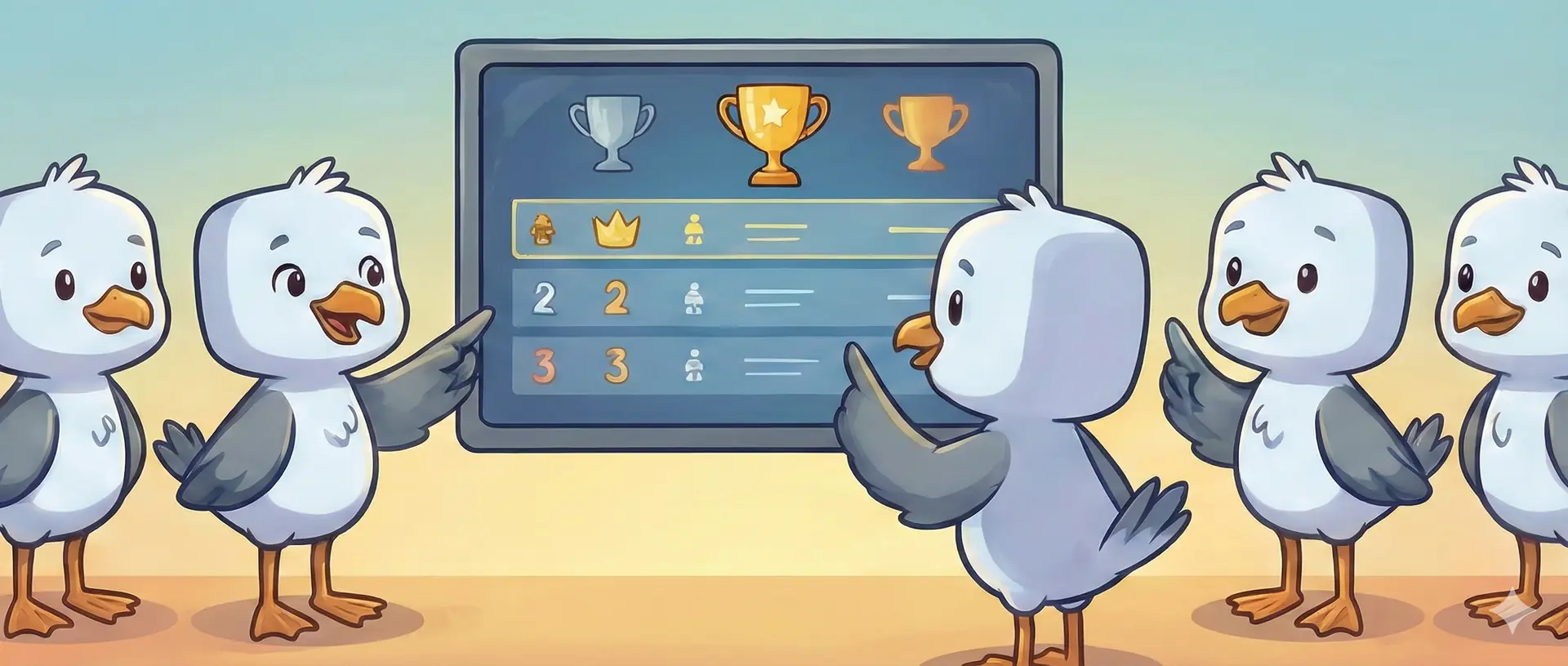
Give every round a high score.

Save the score after a round and show who's ahead. Keep using your connection and player session.

Tutorial video

Live ops and contentGodot8:04
Open video separately ↗