Your next feature
Crash Reporting
Capture a test error with context.
Godot
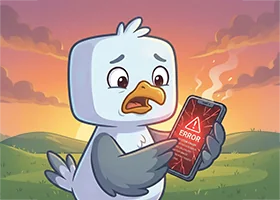
Your visible result
A test error appears with context in the dashboard.
Triage a crash report2:53
Open video separately ↗Prepare the same project
Choose the same project in the dashboard as in your game configuration.
Crash Reporting →No additional definition is needed for the first request. An empty result is valid until matching game data exists.
Build this feature
You can preview the guide. Running it requires an active project key. Prepare project
SDK installed and project configuration imported.
Save the GDScript, attach it to a node in the main scene and run it. Check Output.
GDScript
1# Attach this script to a node in your main scene.
2extends Node
3
4
5func _ready() -> void:
6 # Setup: initialize, connect and sign in a player.
7 var connected = await Horizon.connect_to_server()
8 if not connected:
9 print("Failed to connect to horizOn server")
10 return
11 if not Horizon.auth.isSignedIn():
12 var signed_in: bool
13 if Horizon.auth.hasCachedAnonymousToken():
14 signed_in = await Horizon.auth.restoreAnonymousSession()
15 else:
16 signed_in = await Horizon.auth.signUpAnonymous("StatisticsPlayer")
17 if not signed_in:
18 return
19
20 # horizOn: capture crashes with breadcrumbs and context.
21 # Register a crash session, then attach context
22 await Horizon.crashes.register_session()
23 Horizon.crashes.set_user_id(Horizon.auth.getCurrentUser().userId)
24 Horizon.crashes.record_breadcrumb("scene", "Entered dungeon_01")
25
26 # Report a handled exception with extra diagnostic keys
27 await Horizon.crashes.record_exception(
28 "Inventory load failed",
29 "Inventory.gd:42",
30 {"scene": "dungeon_01"}
31 )
Test your new feature.
A test error appears with context in the dashboard.
Choose the same project in the dashboard as in your game configuration.
Docs and dashboard
Read the docs
Tutorial video
Support and diagnosticsGodot4:19
Open video separately ↗